
CELPIP Blog
Set CELPIP Headphone Volume Before Test Day in 5 Minutes
Set CELPIP Headphone Volume Before Test Day in 5 Minutes

Set your headphone volume to a moderate level below the device’s maximum before you sit the CELPIP test, then run the platform’s audio check right away to confirm you can hear every word clearly. That single check, done before the clock starts, catches most volume and connection problems that would otherwise cost you marks in the Listening section.
TL;DR:
- On computers, confirm your headphones are the selected output, check that the browser tab is not muted, and close apps that could interrupt audio.
- Wired headphones avoid battery and wireless signal failures; if you use Bluetooth, disable battery saving and test the exact headset with your device beforehand.
- Start near 40% to 60% of maximum volume, since Health Canada warns that levels above roughly 60% often signal unsafe listening.
- Run three timed mock listening sections during the week before the exam with your actual headphones and device, so hardware problems surface during practice.
- If speech remains unclear, notify the proctor or support promptly and record your device model, browser, audio settings, and what you heard.
Table of Contents
- Five-minute pre-test checklist for headphone and device audio
- How to set up volume on common devices and headphone types
- Quick in-test actions when the audio is too quiet or distorted
- Common audio problems and how to fix them fast
- Safe listening limits and device volume warnings
- Why mock exams reduce audio surprises on test day
- Adjusting volume for wired, wireless, and noise-cancelling headphones
- What actually matters most on test day
- Try a mock exam to confirm your headphone setup works
- FAQ
- Sources
Five-minute pre-test checklist for headphone and device audio
We always tell test takers the same thing: audio problems are almost never about talent, they’re about setup. A five-minute check before you start fixes most of them.
Work through this list in order:
- Confirm your headphones are plugged in securely, or fully charged if they’re wireless.
- Set your system volume to a moderate level below the maximum, then fine-tune using the CELPIP platform’s built-in audio check.
- Close any app that might play a sound or trigger a notification during the test.
- Keep a backup headset, wired if possible, within reach in case your primary pair fails.
- Play one practice question or sample audio file to confirm every word comes through clearly.
That last step matters more than people expect. A volume slider that looks right can still sound muffled if your headphones are set as the wrong output device, and the only way to catch that is to actually listen to something before the real test audio starts.
How to set up volume on common devices and headphone types
Audio on a computer or phone travels through several layers, and each one can quietly override the others. Get the order right and you’ll avoid most surprises.
- Start with the CELPIP platform’s own volume or audio check control, since this is the layer closest to what you’ll actually hear.
- Check the browser tab isn’t muted separately from your system (a small speaker icon on the tab will tell you).
- Adjust your operating system’s main volume mixer, confirming the correct output device is selected.
- Use any inline controls on your headphone cord or earcup as the final, small adjustment.
On a laptop or desktop, open your sound settings before you log in to the test and make sure your headphones, not your built-in speakers, are chosen as the output device. Wired USB or 3.5 mm connections tend to be the most dependable choice for test day because they don’t depend on a battery or a wireless signal that can drop mid-sentence.
On a phone or tablet, turn off any Bluetooth battery-saving mode, since some devices reduce audio quality to save power. Set your media volume, not your ringer volume, since these are controlled separately on most devices.
Wireless headphones are convenient, but they introduce a small chance of pairing issues or lag. Wired headphones remove that risk entirely, which is why we recommend them as your primary option whenever the test platform allows it.
Pro Tip: Test your exact headphones with your exact device at least once before test day, not a similar pair you own.
Quick in-test actions when the audio is too quiet or distorted
If something sounds off once the test has started, don’t panic and don’t waste time hunting through every menu. Work through a short, quiet sequence of checks instead.
- Use any replay or preview feature the platform offers before assuming the problem is your hardware.
- Adjust your headphone’s inline volume control or your system volume in small steps rather than jumping to maximum.
- If speech still isn’t clear, note the issue immediately and flag it to the proctor or test support with specifics.
- Record your device model, browser, a screenshot of your audio settings, and a short description of what you heard (or didn’t).
Having those details ready before you ask for help speeds up any support response and gives you a stronger basis for a re-evaluation request if the audio issue affected your score.
Common audio problems and how to fix them fast
Most audio complaints during online listening tests fall into one of four categories, and each has a fast fix.
- Quiet audio: switch to a wired connection, close competing apps, check that your cable is fully seated, and confirm the right output device is selected.
- Distortion or clipping: turn down any equalizer boosts, lower your volume slightly, and let the platform’s own volume control do the fine-tuning.
- Dropouts or lag: turn off Bluetooth and switch to wired, or move closer to your Wi-Fi router, and restart your audio device if the problem persists.
- Echo or feedback: make sure your headphones are selected as both your playback and recording device, and lower your microphone monitoring level.
Pro Tip: A wired connection solves more audio problems on test day than any software setting ever will.
Safe listening limits and device volume warnings
Clear audio and safe listening aren’t in tension, they’re the same goal. Health Canada’s guidance on hearing health notes that headphone volume above roughly 60% of a device’s maximum often signals an unsafe listening level, and that many devices include built-in warnings or limiters to help you stay under that line.
Starting around 40 to 60% of maximum volume gives most test takers clear speech without pushing into the range Health Canada flags as risky. Raise it only as far as you need for comfortable clarity, never as a reflex.
Most phones and laptops let you turn on a volume warning in their sound or accessibility settings. Switching that on gives you an objective signal, rather than a guess, about whether you’ve gone too far.
Why mock exams reduce audio surprises on test day
The less familiar test-style audio sounds to you, the more volume you’ll feel you need to understand it, and that’s usually a comprehension problem disguised as a volume problem. Repeated exposure to the pacing, accents, and audio quality of real CELPIP-style listening tasks changes that. You start recognizing patterns instead of straining to catch every syllable.
We built our mock exams to reproduce those exact listening conditions, including the pacing and format of the real test, so problems with your hardware or your ear surface during practice rather than during the exam itself. A simple routine works well: run three timed mock listening sections with the same headphones and device you plan to use for the real test, ideally the week before.

Adjusting volume for wired, wireless, and noise-cancelling headphones
Different headphone types behave differently once you turn the dial, so the same percentage doesn’t always sound the same.

Wired headphones respond immediately to both your system volume and any inline control on the cable, so adjust the smaller control first and treat the system slider as your main setting. There’s no battery or signal lag to account for, which is exactly why they’re the most predictable choice for test day.
Wireless headphones add a layer: the device’s own volume (if it has buttons) can sit independently from your laptop or phone’s volume.
Noise-cancelling headphones often sound louder at the same numerical volume because they remove competing background noise, so you may need less volume than you’d expect, not more. Test with noise cancellation switched on in the exact environment you’ll use for the real exam, since switching it on mid-test isn’t something you want to be doing for the first time with the clock running.
Whichever type you use, the goal is the same: find the lowest volume where every word is distinct, then leave it there.
What actually matters most on test day
Most advice about CELPIP audio focuses on finding the “right” volume number, as if there’s a magic setting that unlocks clarity. There isn’t. The number matters far less than the habit of checking it, and that’s the piece most guides skip.
We’d argue the real problem isn’t volume at all, it’s familiarity. A test taker who has run three or four mock listening sections on the same device will recognize the format and stay calm when one sentence is harder to catch.
So prioritize rehearsal over adjustment. Set your volume once, sensibly, at a sensible level, then spend your remaining prep time on practice audio, not on fiddling with sliders. The confidence that comes from familiarity will do more for your Listening score than any volume setting ever could.
— Reza
Try a mock exam to confirm your headphone setup works
Running one full listening mock with your actual headphones tells you more than any checklist can, because you’ll hear exactly what test-day audio sounds like through your own gear, at your own volume setting.
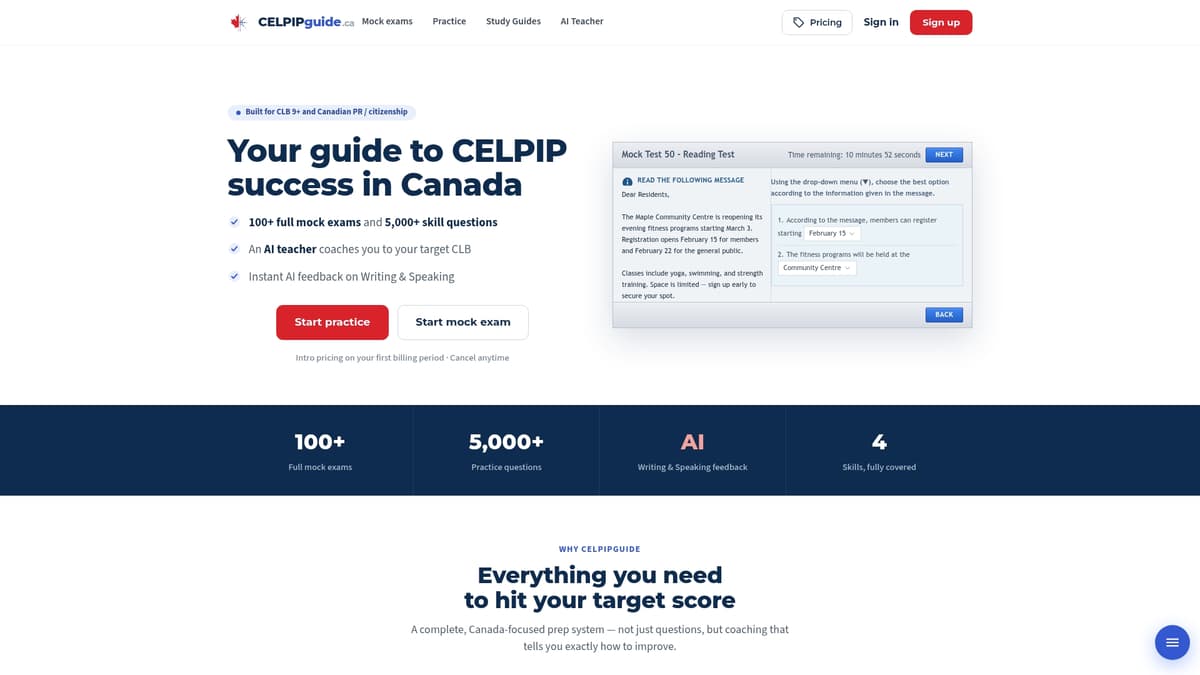
Our Plus plan gives you access to a full set of mock exams, a diagnostic test, and listening practice built to mirror real CELPIP audio conditions, so any hardware or volume issue shows up while you still have time to fix it. If you want to go deeper into specific listening skills first, our guides on listening question types and listening strategies pair well with a volume check.
Before you commit to a plan:
- Run one timed mock listening section with the exact headphones you plan to wear on test day.
- Note anything unclear, then adjust your volume or switch headsets with time to spare.
- Use available discounts at checkout for savings on your plan.
FAQ
What counts as a good score on the CELPIP listening test?
Scores are reported as CELPIP levels that map directly to Canadian Language Benchmark (CLB) levels, which IRCC uses to calculate Express Entry points. What counts as “good” depends on your specific immigration or program requirement, so check the CLB threshold your application needs rather than aiming for a generic number.
How can I practice listening and reading for the CELPIP test?
The most reliable method is working through full-length mock exams under timed, test-like conditions, since this builds familiarity with both the audio format and the question types you’ll face. Pairing that with targeted listening strategies and note-taking templates helps you practice the skills, not just the content.
How do I take effective notes during CELPIP listening?
Short notes work better than full sentences. Jot down keywords, numbers, and names as you hear them, since you won’t have time to write complete thoughts before the next idea starts. Structured note-taking templates can make this faster and more consistent across different question types.
Why does my headphone volume feel too low even at 60%?
This is usually a device or connection issue, not a volume problem. Check that your headphones are selected as the correct output device, try a wired connection if you’re on wireless, and confirm no equalizer setting is cutting the frequencies that carry speech clarity.